Category: Image Detection

  • Getting started with Tesseract optical character recognition (OCR) library in Visual Studio

    This post is a how-to guide on how to get up and running with using the tesseract optical character recognition (OCR) library in a Microsoft Visual Studio environment.

    The original link can be found at the following github location:

    https://tesseract-ocr.github.io/tessdoc/Compiling.html#windows

    Step 1: Build the latest library (using Software Network client)

    Download and extract the latest SW (Software Network https://software-network.org/) client from the following location:

    https://software-network.org/client/sw-master-windows-client.zip

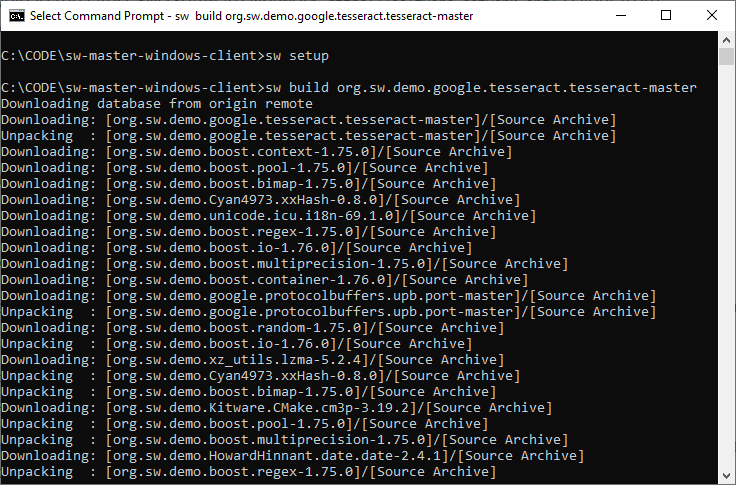
    Open a DOS command prompt and run the following commands:

    sw setup 
    sw build org.sw.demo.google.tesseract.tesseract-master
    

    As shown in the following screenshot:
    Step 2: Install git if you have not already done so

    You will need git to download the libraries needed for this project.

    Download link for obtaining the git for Windows executables etc here:

    https://git-scm.com/download/win

    Simply run the executable. In this example I am using the 64-bit version.

    Step 3. For visual studio project using tesseract set up Vcpkg, the Visual C++ Package Manager.

    First set up the Vcpkg package, a Visual C++ Package Manager.

    Use a git clone command in your DOS prompt to obtain the package to your location of choice and run the vcpkg bootstrap script:

    git clone https://github.com/microsoft/vcpkg
    .\vcpkg\bootstrap-vcpkg.bat
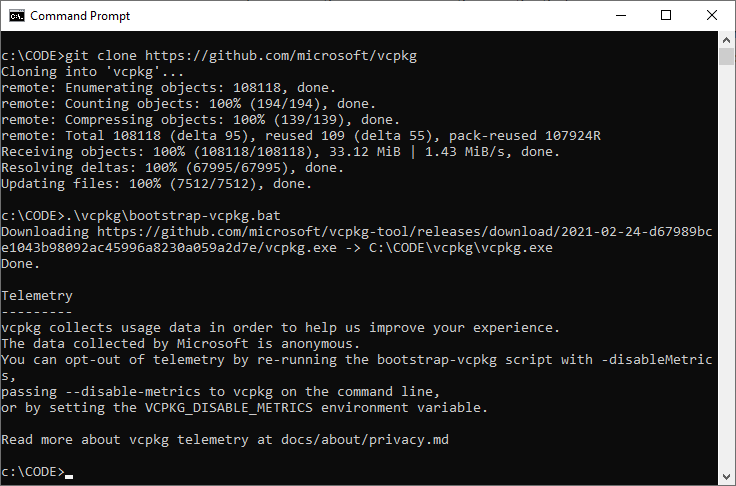
    

    Install the vcpkg package to your folder location of choice.
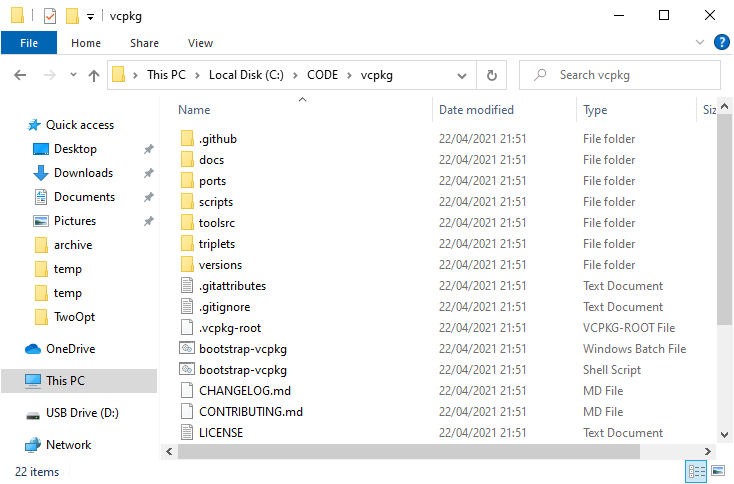
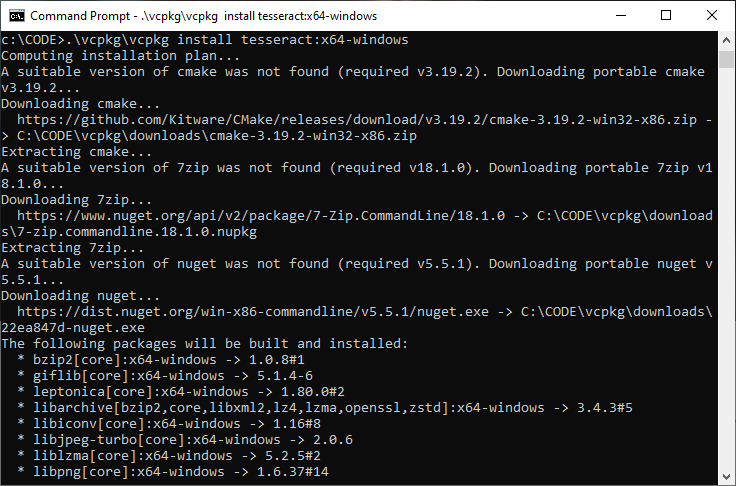
    Then install the tesseract libraries that will be needed for your project:

    .\vcpkg\vcpkg install tesseract:x64-windows
    

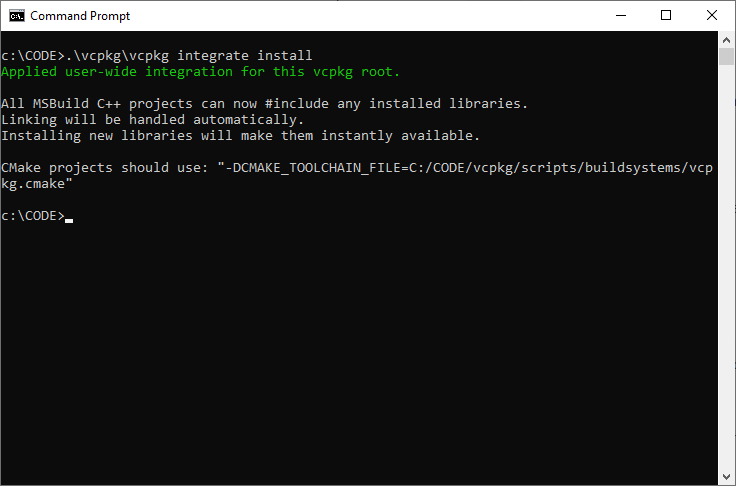
    Step 4: Integrate vcpkg with Visual Studio

    To successfully use vcpkg with Visual Studio, run the following command (may require administrator elevation):

    .\vcpkg\vcpkg integrate install
    

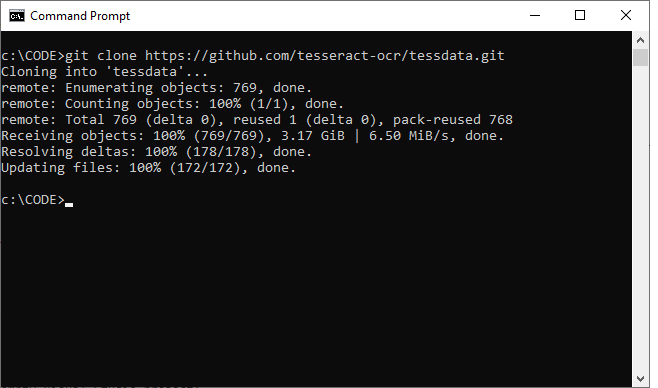
    Step 5: Obtain the tesseract language data

    The download link here for tessdata is available here:

    https://github.com/tesseract-ocr/tessdata

    I used a ‘git clone’ command to download the “eng” files to a chosen folder location:
    Step 6: Set up the tesseract libraries for use in Visual Studio

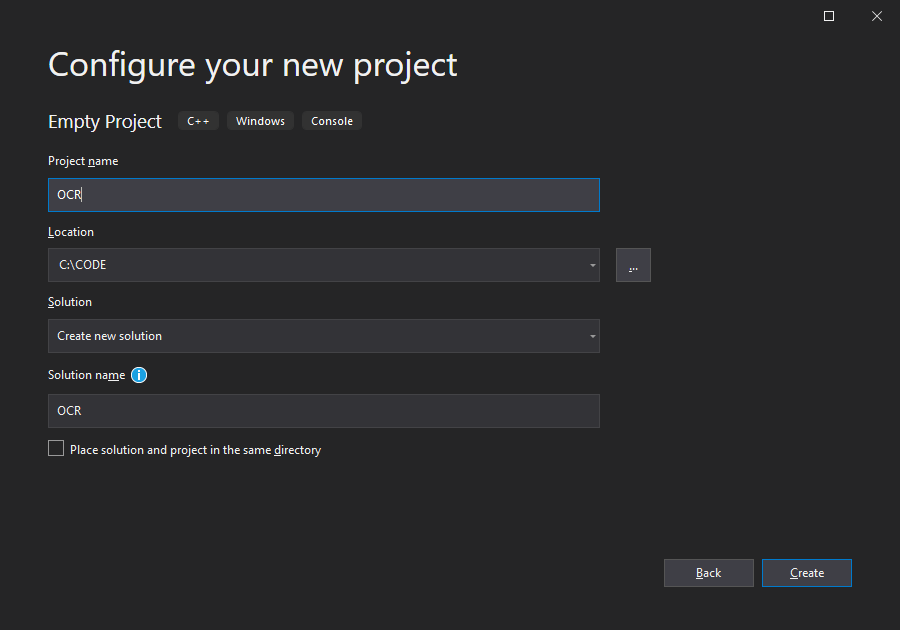
    In Visual Studio, create a new empty Visual Studio project.
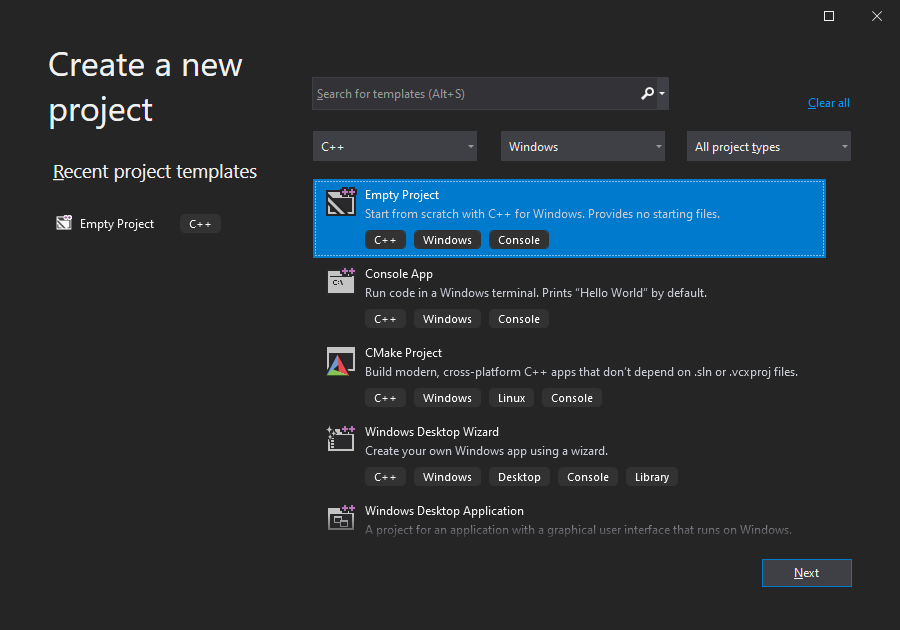
    Add a new source file to your project in order to exercise the tesseract functionality.

    #include <tesseract/baseapi.h>
    #include <leptonica/allheaders.h>
    
    int main()
    {
        char* outText;
    
        tesseract::TessBaseAPI* api = new tesseract::TessBaseAPI();
        // Initialize tesseract-ocr with English, without specifying tessdata path
        if (api->Init("C:\\CODE\\ocr\\tessdata", "eng")) {
            fprintf(stderr, "Could not initialize tesseract.\n");
            exit(1);
        }
    
        // Open input image with leptonica library
        Pix* image = pixRead("C:\\temp\\text1.png");
        api->SetImage(image);
        // Get OCR result
        outText = api->GetUTF8Text();
        printf("OCR output:\n%s", outText);
    
        // Destroy used object and release memory
        api->End();
        delete api;
        delete[] outText;
        pixDestroy(&image);
    
        return 0;
    }
    

    Set up the include and data folders in your Visual Studio solution folder.
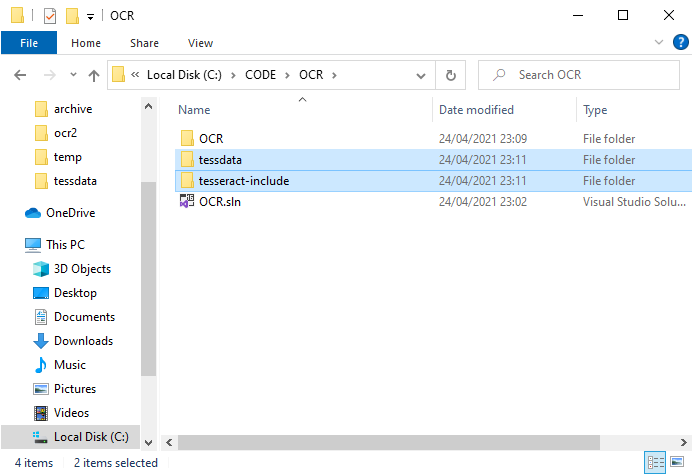
    ‘tessdata’ contains the tesseract data file(s) mentioned in Step 5.

    ‘tesseract-include’ contains the lib / dll files needed for the project.
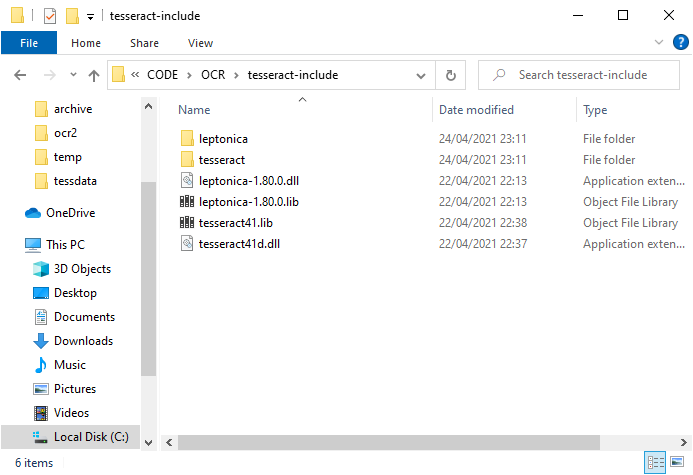
    You can obtain the tesseract / leptonica .lib library files from the ‘packages’ folder that was installed previously.
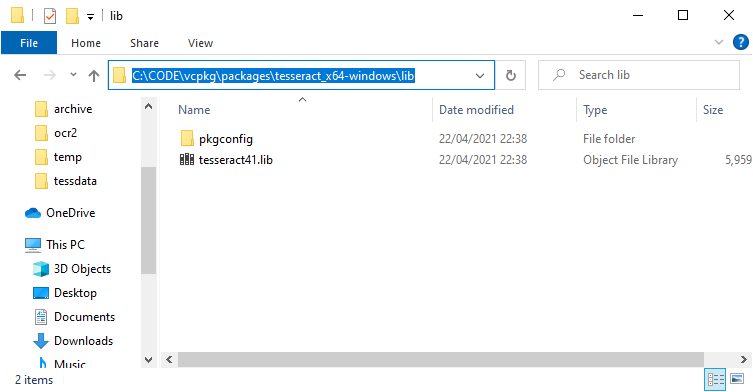
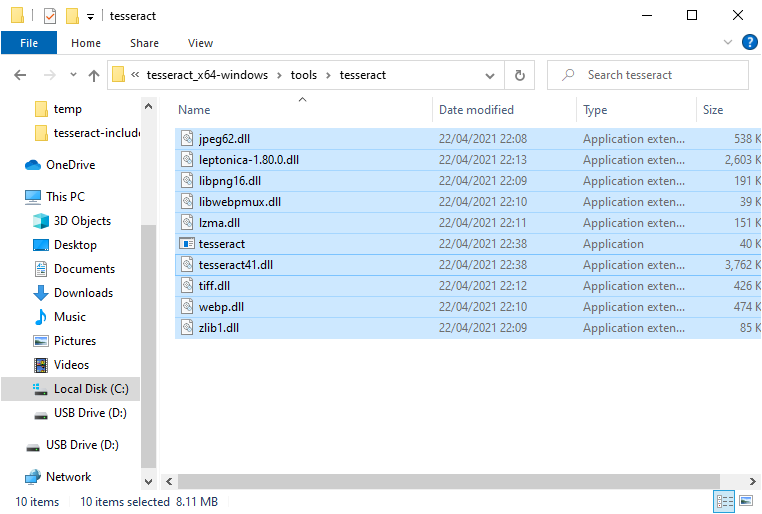
    You can obtain the tesseract / leptonica dll and all other files files from the ‘tools’ folder that was installed previously.
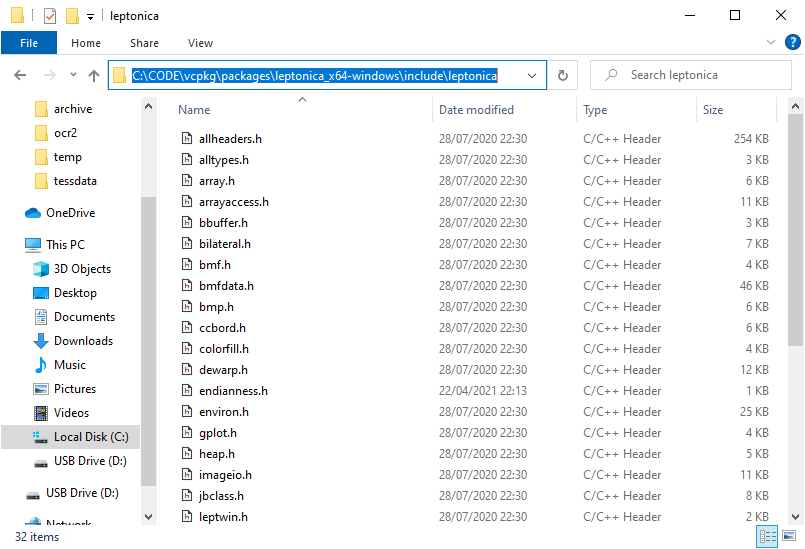
    Obtain the tesseract / leptonica header files from the ‘include’ folder that was installed previously.

    Leptonica example:
    Do the same for tesseract:
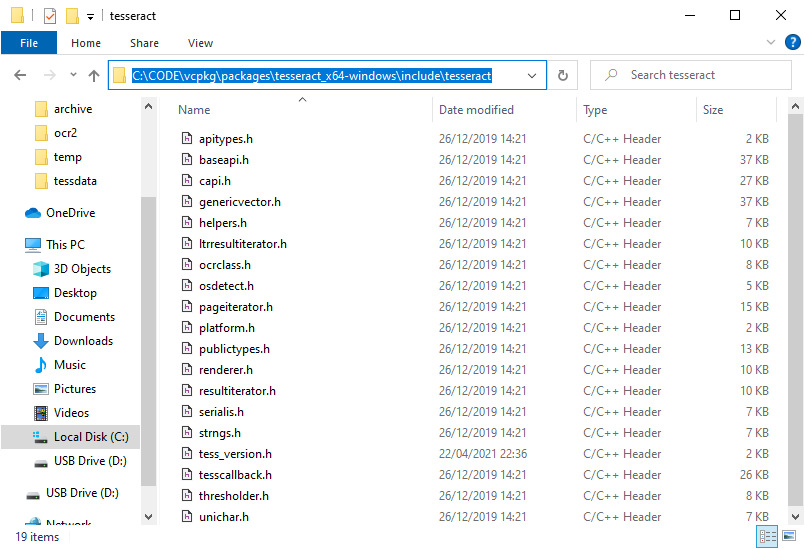
    Copy the header files into the tesseract-include\{tesseract, leptonica} folders you created for your Visual Studio project.

    Step 7: Set up the Visual Studio project properties

    Once we have copied over the files we need for our sample project, we are able to set up the project properties.

    In Visual Studio right-click the project folder and select properties.

    Select General > VC++ Directories, and set the include directories:
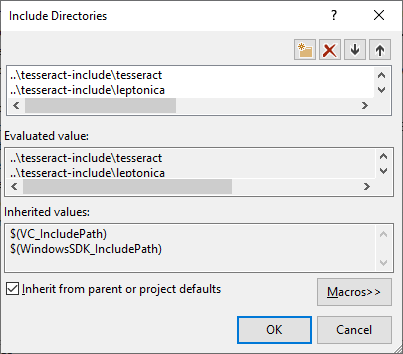
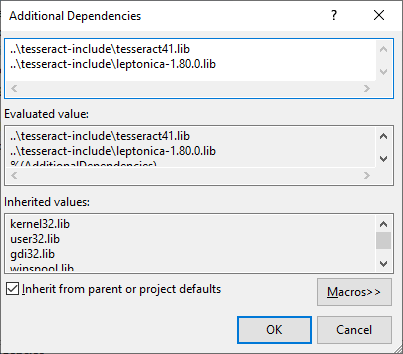
    In Linker > Additional Dependencies, set the .lib files:
    Step 8: Try it!

    Rebuild and run/debug your visual studio project.

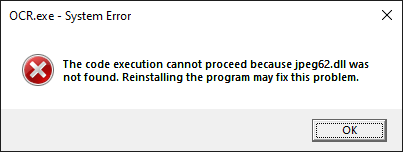
    If you get an error complaining of a missing dll, copy the dlls from the vcpkg\packages\tesseract_x64-windows\tools\tesseract folder into your Debug / Release folder.
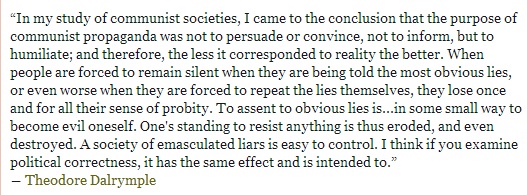
    Example image containing the text that we wish to read:
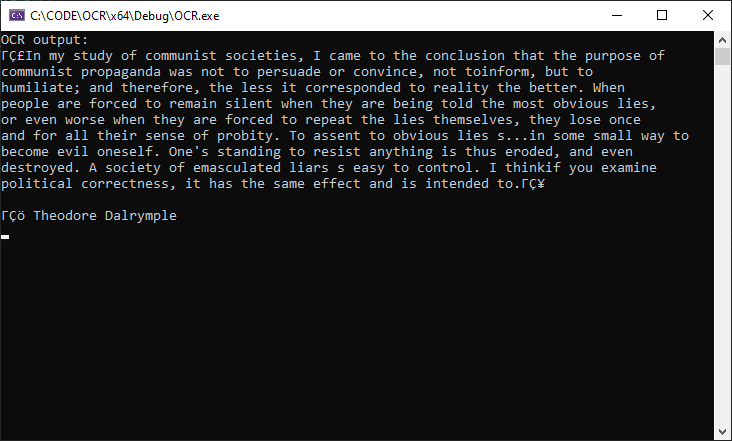
    Console output:
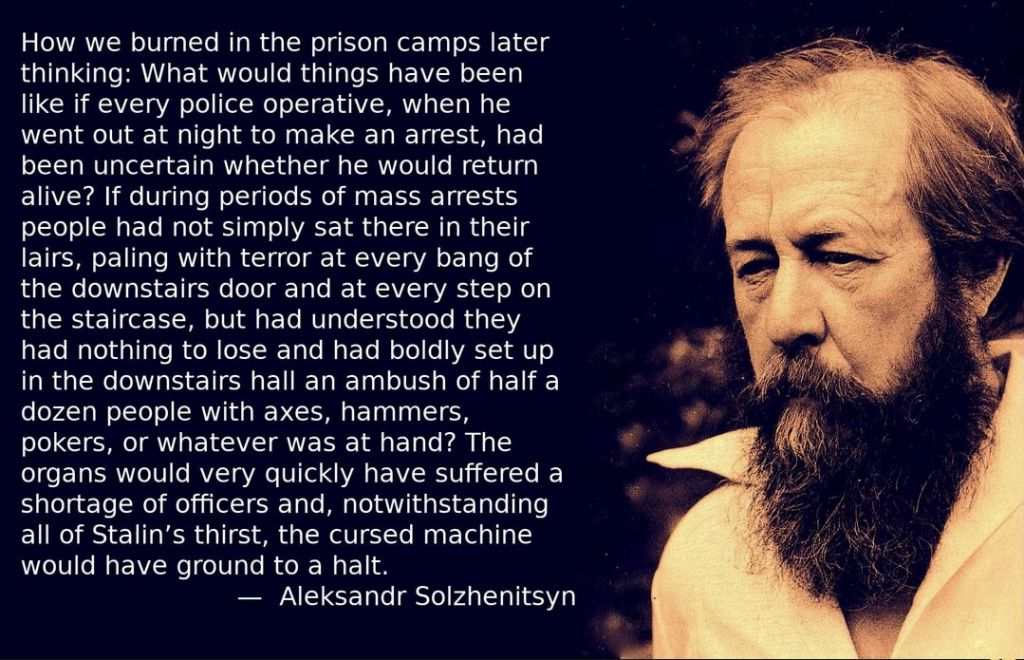
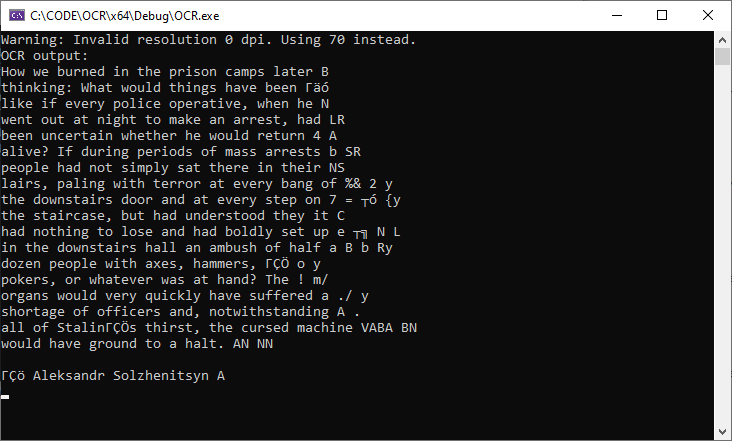
    Another example image, this time containing a quote from Aleksandr Solzhenitsyn:
    Console output:
  • Using OpenCV to find and draw contours in video

    This is a very similar post to that posted previously, which used a OpenCV and cvBlobsLib to identify contours in video footage and display them on the screen. Please refer to this for detail on how to convert the Red, Green, Blue (RGB) format into Hue, Saturation, Value (HSV) format, and threshold the HSV into the black and white format needed for finding contours in OpenCV:

    https://www.technical-recipes.com/2011/track-colored-objects-in-video-using-opencv-and-cvblobslib/

    This example achieves the same but without using the cvBlobsLib to identify contours / strongly connected components, just 100% OpenCV calls.
    (more…)

  • Configuring Code::Blocks to use OpenCV in Linux Environments

    A quick guide to setting up and installing OpenCV for using in the Code::Blocks integrated development environment in Linux. The version of Linux I am currently using is Ubuntu 14.04. At the time of writing the version of OpenCV for Linux used is 2.4.9. (I had originally tried version 2.4.10 but had problems compiling it with the version of gcc I had (4.8.2), so I reverted to 2.4.9 instead.) (more…)

  • Tracking Colored Objects in Video using OpenCV and cvBlobsLib

    As a newcomer to image processing, I have attempted to achieve the tracking of coloured objects in some sample video footage. In my case, my little one’s blue gloves moving in a snow-covered landscape (a bitterly cold Musselburgh allotments, December 2010).


    (more…)

  • Displaying AVI Video using OpenCV

    A short demonstration of how to use OpenCV to capture and display video frames from an avi file. The code demonstrates how to capture video from an example video (avi) file, get information in the form of frames per sec. and display the video.
    (more…)

  • Analyzing FlyCapture Images obtained from Flea Digital Cameras

    Flea2 Camera Physical Layout

    The photograph shows the physical setup for grabbing images from a Flea2 camera (by Point Gray Research) mounted above a Xaar inket printer. This represents a prototype used to obtain images of microarray spots printed to glass sample slides, in “Format7” (partial image) mode, as the printhead moves across trays containing 25 microarray slides.

    Using the FlyCapture SDK

    The FlyCapture SDK provides methods for acting upon triggers from external pieces of hardware (in this case Xilinx FPGA boards) and retrieve the image buffer when receiving these prompts. What is more, it is possible to capture grayscale images directly from the camera, eliminating the need for colour-to-grayscale conversions in software.

    Obtaining acceptable camera settings interactively

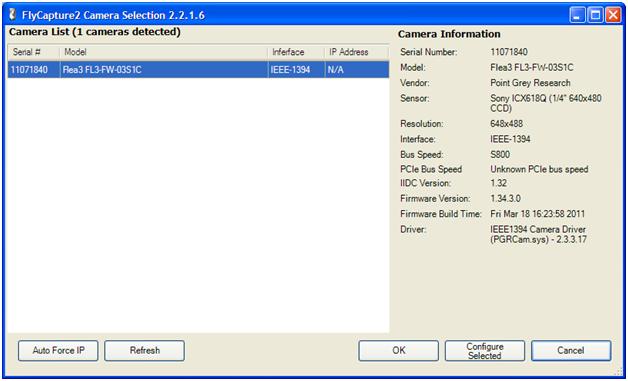
    Assuming you have installed the full FlyCapture2 SDK, at the Start button, select All Programs -> Point Gray Research -> FlyCapture2 -> Examples -> Precompiled Examples -> Flycap2MFC.exe. The interface will display a list of all connected cameras:

    Click refresh or double-click the make of camera highlighted to invoke the screen capture interface, that will show the images it receives for the current camera setup which in my setup look like this:

    On this particular setup, clearer images of slide spots could be obtained by making small adjustments the Flea2 camera distance and focus:

    Obtaining real-time images in Format7 mode

    The previous screenshots show regions of sample spots on an already-printed slide. We are interested in obtaining images of groups of 12 spots the moment these 12-spot groups get printed to the slides as the robot is moving the Xaar printhead from left to right at a constant velocity. In other words, capturing much narrower images on-the-fly, not after they have all been printed.

    C++ software is used to activate the printing of spots at precise moments using FPGA commands which are triggered according to the position intervals obtained from Renishaw linear encoders. The C++ also controls the Mitsubishi PLC to start the stepper motor movements to move the printhead to move from left to right across the slide tray. At the same time a separate thread is launched to start grabbing images of printed spots the moment they receive the external trigger inputs from the FPGA.

    As an example of its potential usage, by capturing and analysing these spot images in real-time, we can deduce if there are potential hardware problems with the printhead, such as missing spots or mis-aligned spots caused by misfiring inkjet nozzles, and thus improve existing QC processes.

    Further analysis of FlyCapture images

    By using and adjusting the Format7 settings to get the image dimensions and pixel formats you want, plus including any other offsets/magic numbers that are needed, it is possible to grab the section of the image that we need, such as letterbox areas containing the regions of 12 spots as they are printed.

    Use of open source tools such as OpenCV and cvBlobsLib enables software to “see” images as they are being retrieved. After converting the grayscale image into binary (black and white) it should then be possible to obtain a list of strongly connected components (spots), using APIs such CBlobResult or cvFindContours, giving you information such as the number of spots, spot dimensions like bounding rectangles or center coordinates and area. See this posting for more specifics on using the FlyCapture2 SDK to grab images in Format 7 mode. Grayscale image obtained after according to Format7 settings:

    Notice some shadowing due to camera angle and less than ideal lighting conditions. OpenCV is used to threshold the grayscale image:

    // Threshold to convert image into binary (B&W)
    cvThreshold( img,                 // source imaging
                 img_bw,              // destination image
                 150,                 // threhold val.
                 255,                 // max. val
                 CV_THRESH_BINARY );  // binary type );
    

    So that it becomes

    Not very good – it picks up far too many artifacts and does not sufficiently exclude those gray values we do not want included as connected components. After experimenting with the threshold value, reducing it from 150 to 100 much improves the binary image obtained, causing the bitmap to come out like this:


    Much better. And it correctly detects the 12 blobs and their bounding rectangles, ellipse coordinates and pixel areas. There is also cvAdaptiveThresholding though this is also subject to appropriate setting of the adaptive_method, threshold_type, block_size etc parameters. As an example usage of adaptive thresholding:

    cvAdaptiveThreshold( img,               // source image
                         img_bw,            // destination image
                         255,               // max. value
                         CV_ADAPTIVE_THRESH_MEAN_C, // adaptive method
                         CV_THRESH_BINARY,          // threshold type
                         7,                         // block size
                         7 );                       // param1
    

    Gives the following black and white image:

    Better than the original poor result, but not as clean as using ordinary thresholding, and the shadowing around the proper spots is also getting picked up and interpreted as more connected components, meaning more than the intended 12 spots get detected.

    No doubt this could improve with further experiementation, but ordinary thresholding at the moment seems much simpler, and the method I would stick with for the time being, or until the lighting setup changes.

    Potential problems when using FlyCapture2 inappropriately

    If you get an error message similar to the following…:

    Then make sure you do not already have an instance FlyCap2MFC running in the background, such as when running the same version in Visual Studio in addition to the raw executable.

    If the software you are running to grab images seems to hang or take much longer than is usual, then it may well be caused by having attempted to run more than one instance of FlyCapture2 –related software, be it your own creation or one of the SDKs provided by Point Gray Research. This problem causes the RetrieveBuffer() function to return a PGRERROR_TIMEOUT error.

    This type of problem usually causes my XP machine to hang in such a way that a forcible power down and restart is necessary. Obviously the solution is to ensure that only one instance of FlyCapture2 software is run at a time..


    Other posts related to image detection

    Tracking Coloured Objects in Video using OpenCV
    Displaying AVI Video using OpenCV
    Integrating the FlyCapture SDK for use with OpenCV
    OpenCV Detection of Dark Objects Against Light Backgrounds
    Getting Started with OpenCV in Visual Studio
    Object Detection Using the OpenCV / cvBlobsLib Libraries

  • Integrating the FlyCapture SDK for use with OpenCV

    Introduction

    A recent stab at grabbing images from the Flea2 camera using APIs from the FlyCapture2 SDK by Point Gray Research (PGR).  Additionally, the camera was to be used in  “Format 7 mode”, so that we may grab partial regions of the complete image. (more…)

  • OpenCV Detection of Dark Objects Against Light Backgrounds

    The results of some experimentation with and comparison between raw OpenCV functions and the cvBlobsLib library to detect darker coloured spots against lighter backgrounds. (more…)

  • Getting Started with OpenCV in Visual Studio

    OpenCV is a free, open source library that enables your computer application to “see” and make decisions from the image data it acquires.  Here are some guides for setting up OpenCV for use in Microsoft Visual Studio Environments: (more…)

  • Object Detection Using the OpenCV / cvBlobsLib Libraries

    A short example of how to utilize various open source library functions that can be used to identify and analyse strongly connected components for a given input image.

    In the example I have given here, the image represents microarray sample spots printed to a slide using a Xaar inket printer.  Using our robotic equipment, a camera is mounted to the printhead, so that images are taken of the spots, as they are being printed on-the-fly, usually in linear groups of 12 or 32 at a time: (more…)